Enable role-based LDAP
Describes how role-based LDAP authentication and authorization work, how to configure each setting, and how to validate your configuration before you save it.
| Redis Software |
|---|
Redis Software uses a role-based mechanism to authorize users authenticated with LDAP authentication or with certificate-based authentication (CBA). You map LDAP groups to access control roles, and each user receives the access level of the role mapped to their group.
Role-based LDAP authorizes both cluster management users (previously known as external users) and database users. To authenticate users with client certificates instead of passwords, see certificate-based authentication for LDAP.
How role-based LDAP works
When a user signs in with LDAP credentials, Redis Software runs three steps. Each configuration section on this page maps to one of them:
-
Bind — Redis Software connects to the LDAP server using a dedicated service account, the bind user. Redis Software uses this connection to run the search queries in the next two steps. Configure it under LDAP server settings and Bind credentials.
-
Authenticate — Redis Software finds the user's directory entry and verifies the supplied password by binding to the LDAP server as that user. Configure this under Authentication query.
-
Authorize — Redis Software finds the group or groups the user belongs to, then matches them against the groups you mapped to roles under LDAP mappings. The user receives the access level of the matched group's role. Configure this under Authorization query.
If authentication succeeds but no group matches a mapping, Redis Software denies access. A common symptom is the user being redirected to a change-password screen.
LDAP terminology
| Term | Meaning |
|---|---|
| Distinguished Name (DN) | The full, unique path to an entry in the directory tree, for example cn=jdoe,ou=dev,dc=example,dc=com. |
| Bind DN | The DN of the service account Redis Software uses to connect to the LDAP server and run search queries. |
| Base (Base DN) | The DN where a search starts. The search looks for entries below this point in the tree. |
| Filter | The LDAP search expression that selects matching entries, for example (cn=%u). Enclose it in parentheses. |
| Scope | How deep a search goes below the base: baseObject (the base only), singleLevel (one level below), or wholeSubtree (the base and everything below it). |
%u |
Placeholder replaced with the username of the person signing in. Used in the authentication query. |
%D |
Placeholder replaced with the signing-in user's Distinguished Name. Used in the authorization query. |
Set up LDAP connection
To configure and enable LDAP from the Cluster Manager UI:
-
Go to Access Control > LDAP > Configuration.
-
Select + Create.
-
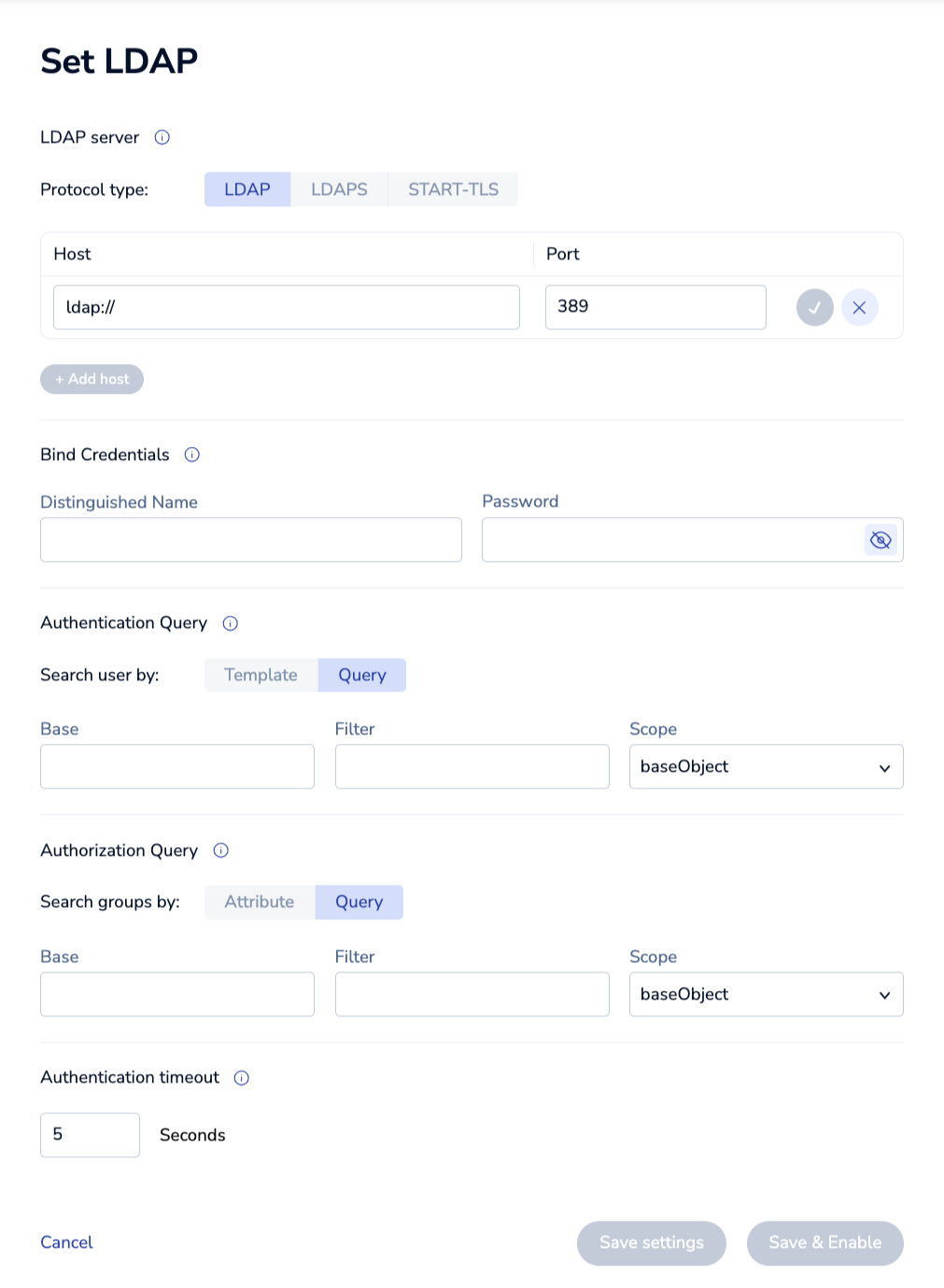
In Set LDAP, configure LDAP server settings, bind credentials, authentication query, and authorization query.
-
Select Save & Enable.
Before you save, validate your configuration so you can confirm each value is correct.
LDAP server settings
The LDAP server settings define how Redis Software connects to the LDAP server:
| Setting | Description |
|---|---|
| Protocol type | Underlying communication protocol; must be LDAP, LDAPS, or STARTTLS |
| Host | URL of the LDAP server |
| Port | LDAP server port number |
| Trusted CA certificate | (LDAPS or STARTTLS protocols only) PEM-encoded certificate of the certificate authority (CA) that issued the LDAP server's certificate |
When you define multiple LDAP hosts, the directory tree structure must be identical for all hosts.
Trusted CA certificate
For LDAPS or STARTTLS, Redis Software validates the LDAP server's certificate against the trusted CA certificate you provide, in addition to the operating system's system CA certificates. Provide the certificate of the CA that issued the server's certificate, PEM-encoded. For a certificate that chains up to a root CA, provide the root CA certificate. In a root CA certificate, the Issuer and Subject fields are identical.
The server's certificate must be valid for the Host value you configured, because Redis Software verifies the hostname against the certificate.
Bind credentials
These settings define the bind user, the service account Redis Software uses to run the authentication and authorization search queries:
| Setting | Description |
|---|---|
| Distinguished Name | DN of the bind user. Example: cn=admin,dc=example,dc=org |
| Password | Password of the bind user. Example: admin1 |
| Client certificate authentication | (LDAPS or STARTTLS protocols only) Place checkmark to enable |
| Client public key | (LDAPS or STARTTLS protocols only) The client public key for authentication |
| Client private key | (LDAPS or STARTTLS protocols only) The client private key for authentication |
Authentication query
The authentication query locates the user's entry so Redis Software can verify their password. Choose how to find the user:
| Setting | Description |
|---|---|
| Search user by | Either Template or Query |
| Template | (template search) A pattern that builds the user's DN directly from the username. Example: cn=%u,ou=dev,dc=example,dc=com |
| Base | (query search) Where the search for the user starts. Example: ou=dev,dc=example,dc=com |
| Filter | (query search) Selects the user entry. Enclose in parentheses. Example: (cn=%u) |
| Scope | (query search) Must be baseObject, singleLevel, or wholeSubtree |
Redis Software replaces %u with the username of the person signing in.
- Use Template when every user's DN follows the same pattern. Redis Software builds the DN from the template and binds directly as the user, with no search.
- Use Query when you must search for the user's entry. Redis Software runs the search as the bind user, then binds as the matched user to verify the password.
Authorization query
The authorization query finds the groups a user belongs to. Choose how to find them:
| Setting | Description |
|---|---|
| Search groups by | Either Attribute or Query |
| Attribute | (attribute search) An attribute on the user's own entry that lists their groups. Example: memberOf (case-sensitive) |
| Base | (query search) Where the search for groups starts. Example: ou=groups,dc=example,dc=com |
| Filter | (query search) Selects the groups that list the user as a member. Enclose in parentheses. Example: (member=%D) |
| Scope | (query search) Must be baseObject, singleLevel, or wholeSubtree |
Redis Software replaces %D with the Distinguished Name of the person signing in.
- Use Attribute when the user's entry already lists its groups, for example in a
memberOfattribute. Redis Software reads the attribute from the user entry it found during authentication. - Use Query when you must search for group entries that list the user as a member.
Authentication timeout
The Authentication timeout setting determines the connection timeout to the LDAP server during user authentication.
By default, the timeout is 5 seconds, which is recommended for most cases.
However, if you enable multi-factor authentication (MFA) for your LDAP server, you might need to increase the timeout to provide enough time for MFA verification. You can set it to any integer in the range of 5-60 seconds.
Validate your LDAP configuration
Before you save your configuration in the Cluster Manager UI, verify each setting from any machine that can reach the LDAP server using ldapsearch. The ldapsearch command-line tool is provided by ldap-utils on Debian and Ubuntu, or openldap-clients on RHEL.
These commands run the same queries Redis Software runs internally, so a successful result means the corresponding UI setting is correct. Validating each setting on its own lets you find the one wrong value instead of only seeing a failed sign-in after you save.
Replace the placeholders with the values you intend to enter in the UI:
| Placeholder | Setting it validates |
|---|---|
<HOST> / <PORT> |
Host / Port |
<BIND_DN> / <BIND_PW> |
Bind credentials → Distinguished Name / Password |
<USER> |
A real test username (substituted for %u) |
<USER_DN> |
That user's full DN (substituted for %D) |
<USER_PW> |
That user's own password |
/path/to/ca.pem |
Trusted CA certificate (LDAPS or STARTTLS only) |
1. Validate protocol, host, port, and trusted CA certificate
Confirm the server is reachable on the chosen protocol and port, and, for LDAPS or STARTTLS, that your CA certificate validates the server's certificate. A successful command returns the server's root entry (result: 0 Success); a TLS error means the CA certificate is wrong or missing.
# LDAP (port 389, no encryption)
ldapsearch -x -H ldap://<HOST>:389 -s base -b "" "(objectClass=*)"

# LDAPS (port 636, TLS)
LDAPTLS_CACERT=/path/to/ca.pem \
  ldapsearch -x -H ldaps://<HOST>:636 -s base -b "" "(objectClass=*)"

# STARTTLS (port 389, upgraded to TLS — note -ZZ)
LDAPTLS_CACERT=/path/to/ca.pem \
  ldapsearch -x -ZZ -H ldap://<HOST>:389 -s base -b "" "(objectClass=*)"
If you configure multiple hosts, run this against each one. All hosts must share an identical directory tree structure.
2. Validate bind credentials
Confirm the bind user can authenticate. Success means the Distinguished Name and Password fields are correct. Failure returns Invalid credentials (49).
LDAPTLS_CACERT=/path/to/ca.pem \
  ldapsearch -H ldaps://<HOST>:636 \
  -D "<BIND_DN>" -w '<BIND_PW>' \
  -s base -b "<BIND_DN>" "(objectClass=*)"
3. Validate the authentication query
Confirm Redis Software can locate the user's entry. Substitute <USER> with a real username.
If you chose Query, this validates Base, Filter, and Scope. The command must return exactly one entry:
LDAPTLS_CACERT=/path/to/ca.pem \
  ldapsearch -H ldaps://<HOST>:636 \
  -D "<BIND_DN>" -w '<BIND_PW>' \
  -b "<BASE>" -s sub "(cn=<USER>)"
-s sub corresponds to Scope = wholeSubtree; use -s one for singleLevel or -s base for baseObject. Replace the filter with your Filter value, substituting %u with <USER>.
If you chose Template, bind as the user your template produces to confirm the template resolves to a valid DN and the password authenticates:
LDAPTLS_CACERT=/path/to/ca.pem \
  ldapsearch -H ldaps://<HOST>:636 \
  -D "cn=<USER>,ou=dev,dc=example,dc=com" -w '<USER_PW>' \
  -s base -b "cn=<USER>,ou=dev,dc=example,dc=com" "(objectClass=*)"
Replace the DN with your Template value, substituting %u with <USER>.
4. Validate the authorization query
Confirm Redis Software can find the user's groups. The returned group DN must later match a group you enter under LDAP mappings.
If you chose Attribute (for example, memberOf), request that attribute from the user's entry. The memberOf: lines in the output are the user's groups:
LDAPTLS_CACERT=/path/to/ca.pem \
  ldapsearch -H ldaps://<HOST>:636 \
  -D "<BIND_DN>" -w '<BIND_PW>' \
  -b "<USER_DN>" -s base "(objectClass=*)" memberOf
The attribute name is case-sensitive.
If you chose Query, this validates the group Base, Filter (with %D = user DN), and Scope:
LDAPTLS_CACERT=/path/to/ca.pem \
  ldapsearch -H ldaps://<HOST>:636 \
  -D "<BIND_DN>" -w '<BIND_PW>' \
  -b "<GROUP_BASE>" -s sub "(member=<USER_DN>)"
5. Validate the LDAP mapping
The most common configuration error is a mismatch between the group DN returned in step 4 and the DN entered under LDAP mappings. Copy the group DN exactly as ldapsearch returns it, including character case and spacing, into the mapping. If they do not match exactly, authentication succeeds but Redis Software denies the user access.
End-to-end check
After you save, sign in to the Cluster Manager UI, or connect to a database with redis-cli, using the test user's LDAP credentials. Success confirms all the steps are configured correctly.
More info
- Map LDAP groups to access control roles
- Update database ACLs to authorize LDAP access
- Learn more about Redis Software security and practices